
1Panel
Приложение VPS в один клик
A web-based tool for managing Linux servers, offering user-friendly controls for websites, databases, containers, security, and backups. It features a clean and intuitive web interface for deploying and managing websites, databases, Docker containers, and AI/LLM applications.


Информация
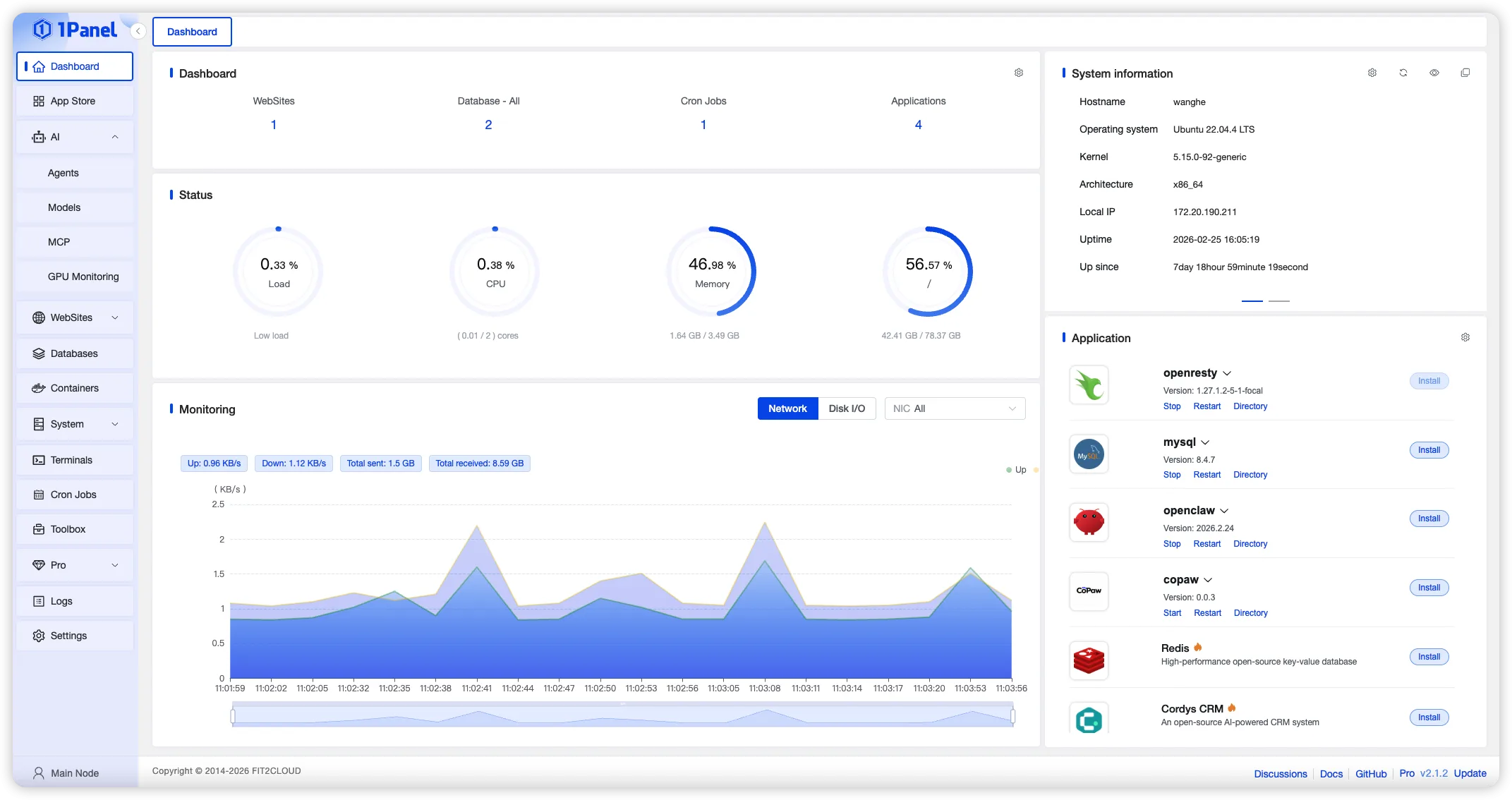
1Panel is a modern, open-source control panel for Linux servers, designed to simplify server, website, and application management. It features a clean and intuitive web interface for deploying and managing websites, databases, Docker containers, and AI/LLM applications. 1Panel supports one-click app installations, convenient file management, real-time server monitoring, flexible backup tools, and advanced security options. With 1Panel, you can easily control system resources, automate tasks with cron jobs, and manage multiple sites and services from a single dashboard.
Core Features
- Unified web interface: Manage websites, databases, files, Docker containers, and applications from a single dashboard.
- One-click app installation: Deploy popular web applications and services via the built-in App Store.
- Docker & container management: Manage Docker containers, images, and volumes.
- Database tools: Manage MySQL and PostgreSQL databases, users, backups, and web access.
- AI/LLM app support: Run and manage large language models and AI services.
- Resource monitoring: Monitor CPU, memory, disk usage, and network traffic in real time.
- Backup & restore: Schedule and manage backups of websites, databases, and system configurations.
- Security tools: Manage firewall, logins, SSL certificates, and permissions.
- Task automation: Configure scheduled maintenance and operations using cron jobs.
Getting Started After 1Panel Deployment
After completing your payment, you will receive an email at the address provided during registration notifying you that your server is ready. This email will include the IP address of your VPS and login credentials to access the 1Panel web interface:
- Link: Provided in your deployment email
- User: Provided in your deployment email
- Password: Provided in your deployment email
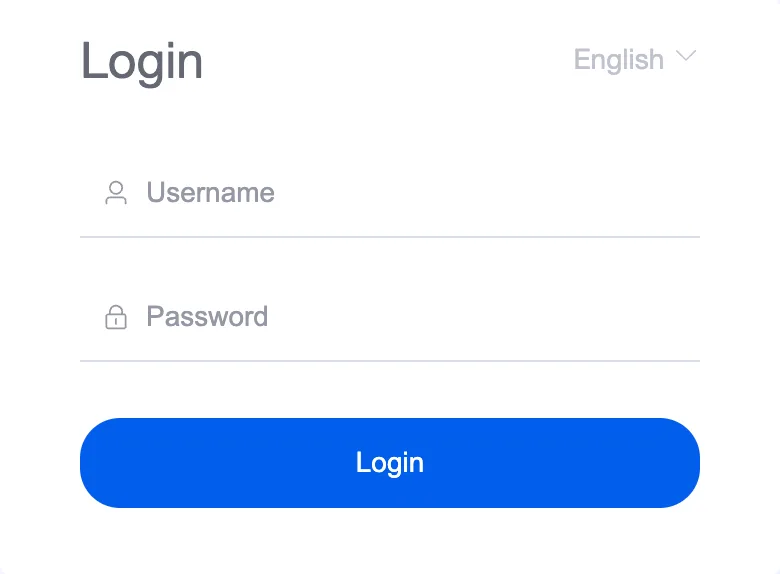
The access credentials for your VPS are listed in the "Virtual Servers" section — select your server and click "Instructions." This information is also provided in the email you receive after installation.
Initial Setup
After logging into 1Panel, you will see a convenient main menu on the left side of the screen that provides quick access to all server and site management features. The menu is organized into sections to simplify navigation and daily tasks:
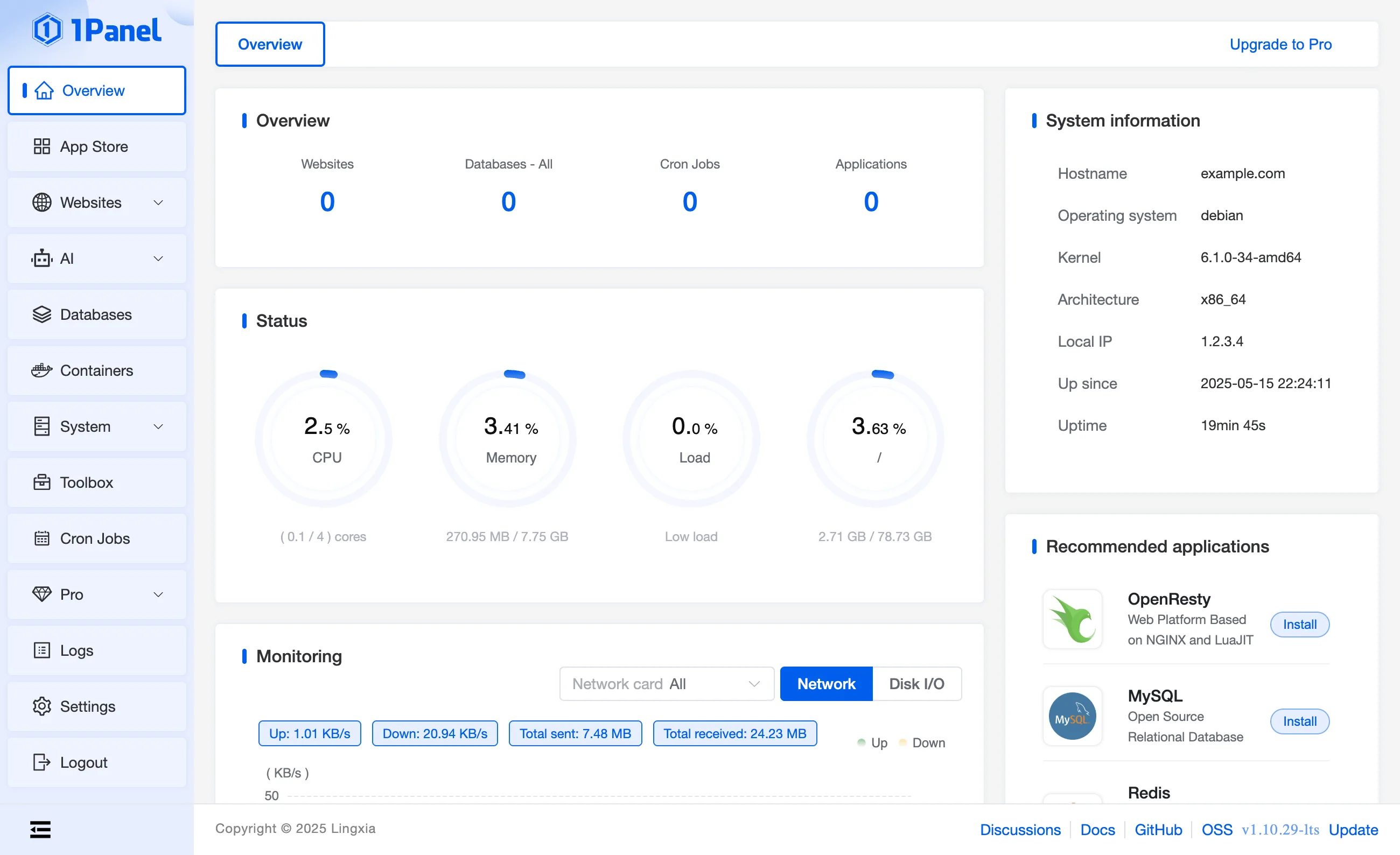
- Overview: Displays information about websites, databases, cron jobs, applications, and server resource usage (CPU, memory, disk, network).
- App Store: Install and manage popular web applications and services in one click (e.g., WordPress, OpenResty, MySQL, Redis).
- Websites: Add, configure, and manage websites hosted on your server.
- AI: Manage and deploy AI/LLM applications directly from the panel.
- Databases: Create, import, export, and manage databases and database users.
- Containers: Deploy, manage, and monitor containerized applications.
- System: Access server information (hostname, OS, kernel, architecture, IP, uptime) and perform system operations.
- Toolbox: Access additional tools for advanced management and troubleshooting.
- Cron Jobs: Schedule and manage cron tasks directly in the web interface.
- Pro: Upgrade to the Pro version to unlock advanced features.
- Logs: View and analyze logs for server and application events.
- Settings: Change panel preferences, security settings, and language.
- Logout: Log out of the control panel.
Detailed information on the main 1Panel settings can be found in the developer documentation.
Разблокировка SMTP-портов
В целях безопасности исходящие TCP-порты (25, 465 и 587) по умолчанию заблокированы на всех VPS. Это предотвращает рассылку спама. Для снятия блокировки выполните следующие действия:
- Зарегистрируйте доменную зону. A-запись домена должна указывать на IP-адрес сервера.
- Отправьте запрос в техническую поддержку, указав необходимость открытия исходящих SMTP-портов для отправки почты и домен или поддомен отправителя.
- После анализа доменного имени мы примем решение об открытии SMTP-портов и уведомим вас.
Opening SMTP ports may require additional details about your domain name and its intended use.