
aaPanel
Приложение VPS в один клик
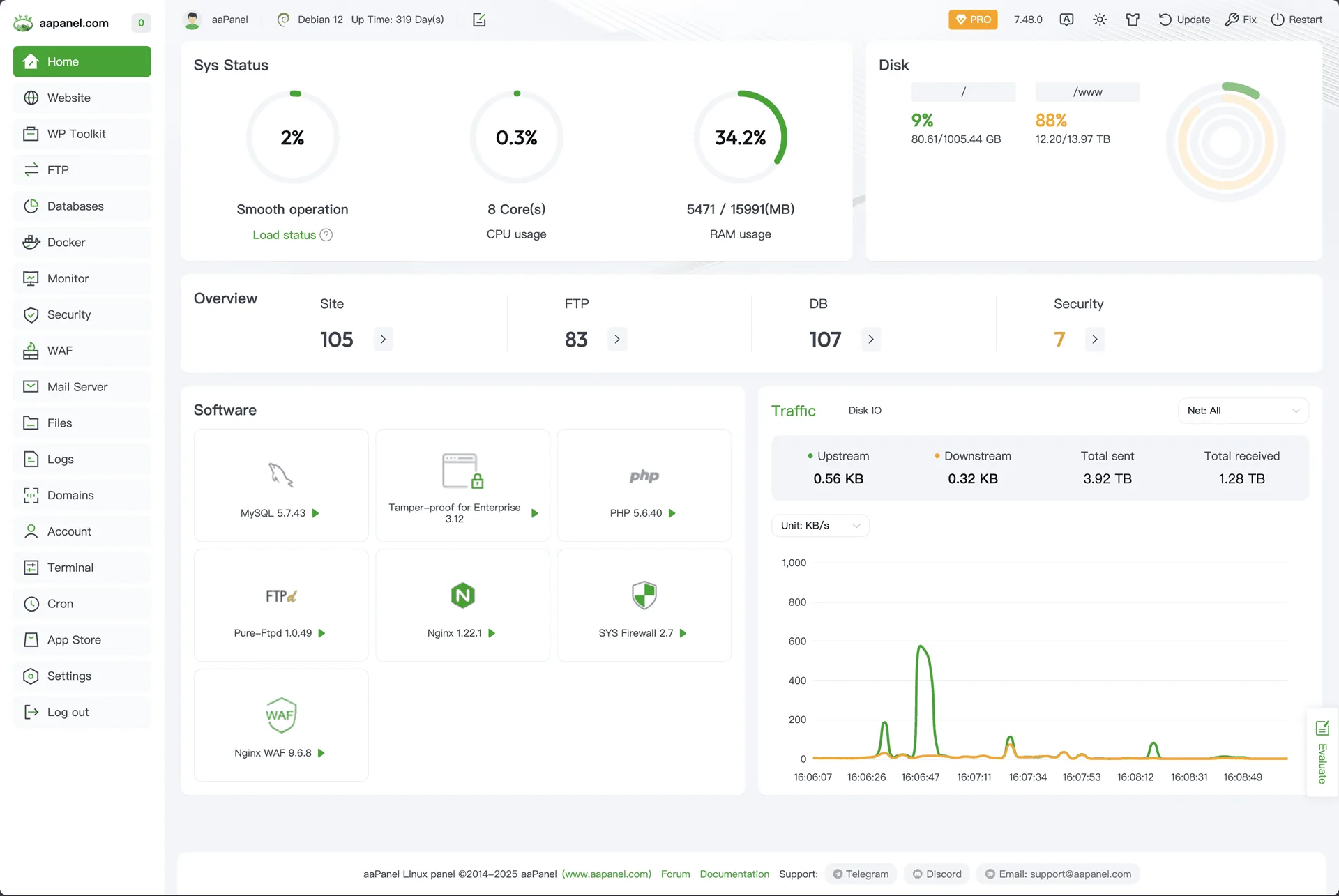
A web-based hosting control panel for managing Linux servers, websites, domains, and databases from a single interface. Configure Nginx or Apache, manage PHP versions and mail services, install SSL certificates, monitor server resources, and schedule backups. Built-in tools simplify routine administration and help keep multiple websites organized.


Информация
aaPanel is a popular open-source web hosting control panel designed for managing websites on servers running Linux distributions such as CentOS, Ubuntu, and Debian. It offers a user-friendly and intuitive web interface for quickly deploying and managing websites, applications, and server services. The panel allows efficient management of domains, MySQL and MongoDB databases, mail services, and provides extensive configuration options for Apache and Nginx web servers. Key features of aaPanel include support for multiple PHP versions, a built-in firewall system, automatic SSL certificate installation, and backup tools.
Core Features
- Web server management: easy configuration and control of Apache and Nginx web servers, including virtual host creation, SSL certificate setup, server config management, and request handling rules.
- Database management: support for popular DBMS like MySQL, MariaDB, and MongoDB with options to create, import, export, and manage databases via a web interface.
- Mail service: built-in tools for configuring mail servers, managing mailboxes, and setting up spam filters.
- Multisite hosting: host and manage multiple websites on a single server with individual settings for each project.
- API for automation: offers an interface for automating server tasks such as site creation, user management, and service configuration.
- Monitoring system: built-in tools for tracking server status including CPU usage, memory, disk space, and network traffic.
- Backup system: flexible tools for creating and managing backups of websites, databases, and system settings, with automation options.
- Performance optimization: tools to improve server speed including caching, file compression, and fine-tuning of services.
Getting Started After aaPanel Deployment
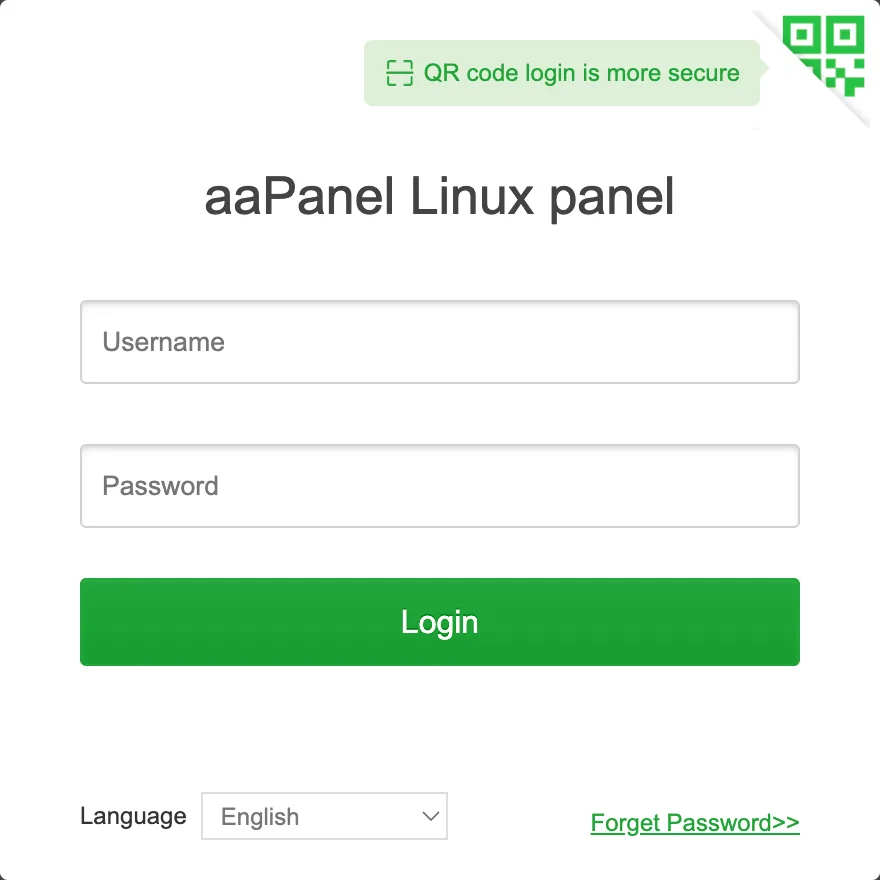
After completing your payment, you will receive an email at the address provided during registration notifying you that your server is ready. This email will include the IP address of your VPS and login credentials to access the aaPanel web interface:
- Link: Provided in your deployment email
- User: Provided in your deployment email
- Password: Provided in your deployment email
Initial Setup
Upon first login to aaPanel, a "Recommended software packages" window will appear, offering a selection of core components for deploying a full-featured web server. This is a key step in the initial setup that will help you quickly prepare your server for operation:
- Available Builds:
- LNMP (Recommended) – recommended build
- LAMP – alternative build
- Build Differences:
- LNMP uses the Nginx + MySQL + PHP stack
- LAMP uses the Apache + MySQL + PHP stack
- Core Components in Each Build:
- Web server (Nginx 1.27 or Apache 2.4)
- Database (MySQL 9.0)
- PHP 8.3
- Pure-Ftpd 1.0.49 (FTP server)
- phpMyAdmin 5.2 (web interface for managing MySQL)
- Optional Components:
- DNS-Server 3 (for managing DNS records)
- Mail-Server 6 (for setting up a mail server)
- Installation Methods:
- Quick install – recommended method
- Compiled – for advanced users
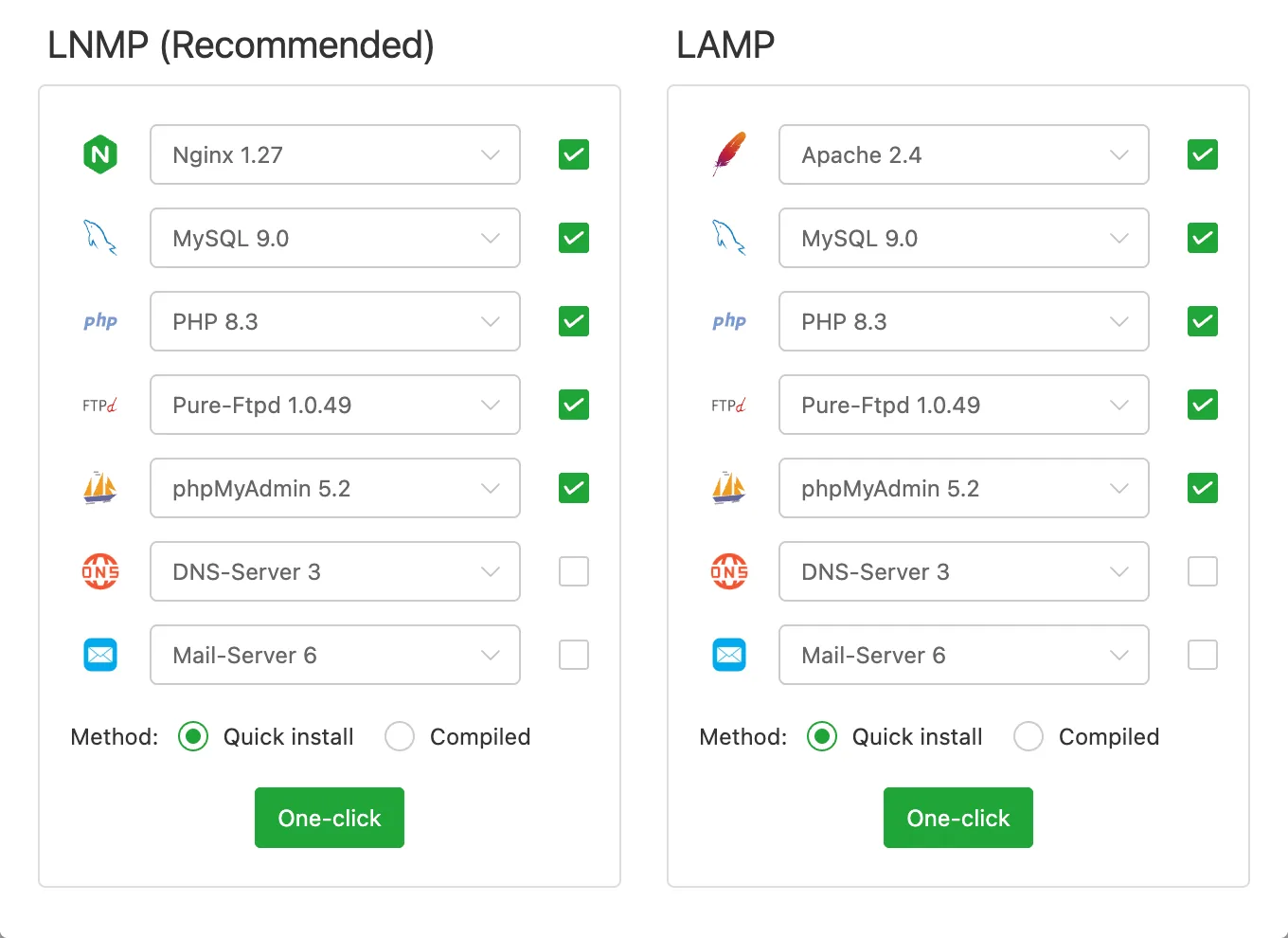
It is recommended to choose the LNMP build, as Nginx generally demonstrates better performance when handling static content and requires fewer resources compared to Apache.
After selecting the desired components, click the “One-click” button to begin installation. The process may take some time depending on the selected components and your server’s performance.
Detailed information on the main aaPanel settings can be found in the developer documentation.
Разблокировка SMTP-портов
В целях безопасности исходящие TCP-порты (25, 465 и 587) по умолчанию заблокированы на всех VPS. Это предотвращает рассылку спама. Для снятия блокировки выполните следующие действия:
- Зарегистрируйте доменную зону. A-запись домена должна указывать на IP-адрес сервера.
- Отправьте запрос в техническую поддержку, указав необходимость открытия исходящих SMTP-портов для отправки почты и домен или поддомен отправителя.
- После анализа доменного имени мы примем решение об открытии SMTP-портов и уведомим вас.
Opening SMTP ports may require additional details about your domain name and its intended use.