
Mailu
Приложение VPS в один клик
A container-based, open-source email server solution for hosting private or business mail on your own VPS. Configure mail domains, user accounts, and mailboxes, send and receive messages, and access email through a webmail interface. Integrated spam filtering, secure connection options, and modular services provide a manageable foundation for self-hosted email.


Информация
Mailu is a lightweight open-source mail server platform that lets you easily run a secure and modern email system on your own server. With its clean web interface, you can manage domains, users, mailboxes, aliases, and advanced anti-spam and antivirus features—all in one place. Mailu is ideal for those who value privacy, simplicity, and full control over their email, whether for business or personal use.
Core Features
- Simple web interface: manage domains, users, mailboxes, and aliases with an easy-to-use control panel.
- Anti-spam and antivirus: built-in spam filtering with Rspamd and optional antivirus (ClamAV, Oletools) for attachments.
- Multiple domain support: host many domains, mailboxes, and aliases on one server.
- Calendars and contacts: optional CalDAV and CardDAV via Radicale for sync.
- Automatic SSL certificates: secure connections managed with Let’s Encrypt.
- Data backup: simple backup and restore options for your mail data.
- Open-source and self-hosted: deploy Mailu on your own server for privacy and control.
Deployment Features
- Installed software:
Docker CEDocker Compose
- Used containers:
ghcr.io/mailu/fetchmailghcr.io/mailu/rspamdghcr.io/mailu/webmailghcr.io/mailu/dovecotghcr.io/mailu/adminghcr.io/mailu/postfixdocker.io/redisghcr.io/mailu/nginxghcr.io/mailu/oletoolsghcr.io/mailu/unbounddocker.io/clamav/clamav-debian
- Open ports:
80,443— Web access (HTTP/HTTPS)25(SMTP),465(SMTPS),587(SMTP Submission)993(IMAPS),995(POP3S),143(IMAP),110(POP3)4190— Sieve mail filtering (ManageSieve)
- Files path:
/opt/mailu
On deployments with less than 3 GB of RAM, ClamAV may be disabled to reduce memory usage:
- ClamAV — An antivirus scanner for email attachments. It helps protect mailboxes from malicious files but requires significant RAM and CPU resources.
Getting Started After Mailu Deployment
After completing your payment, you will receive an email at the address provided during registration notifying you that your server is ready. This email will include the IP address of your VPS and login credentials to access the Mailu web interface:
- Link: Provided in your deployment email
- User: Provided in your deployment email
- Password: Provided in your deployment email
To access Mailu, sign in with your administrator account. Enter your username and password to manage your mail server and its settings.
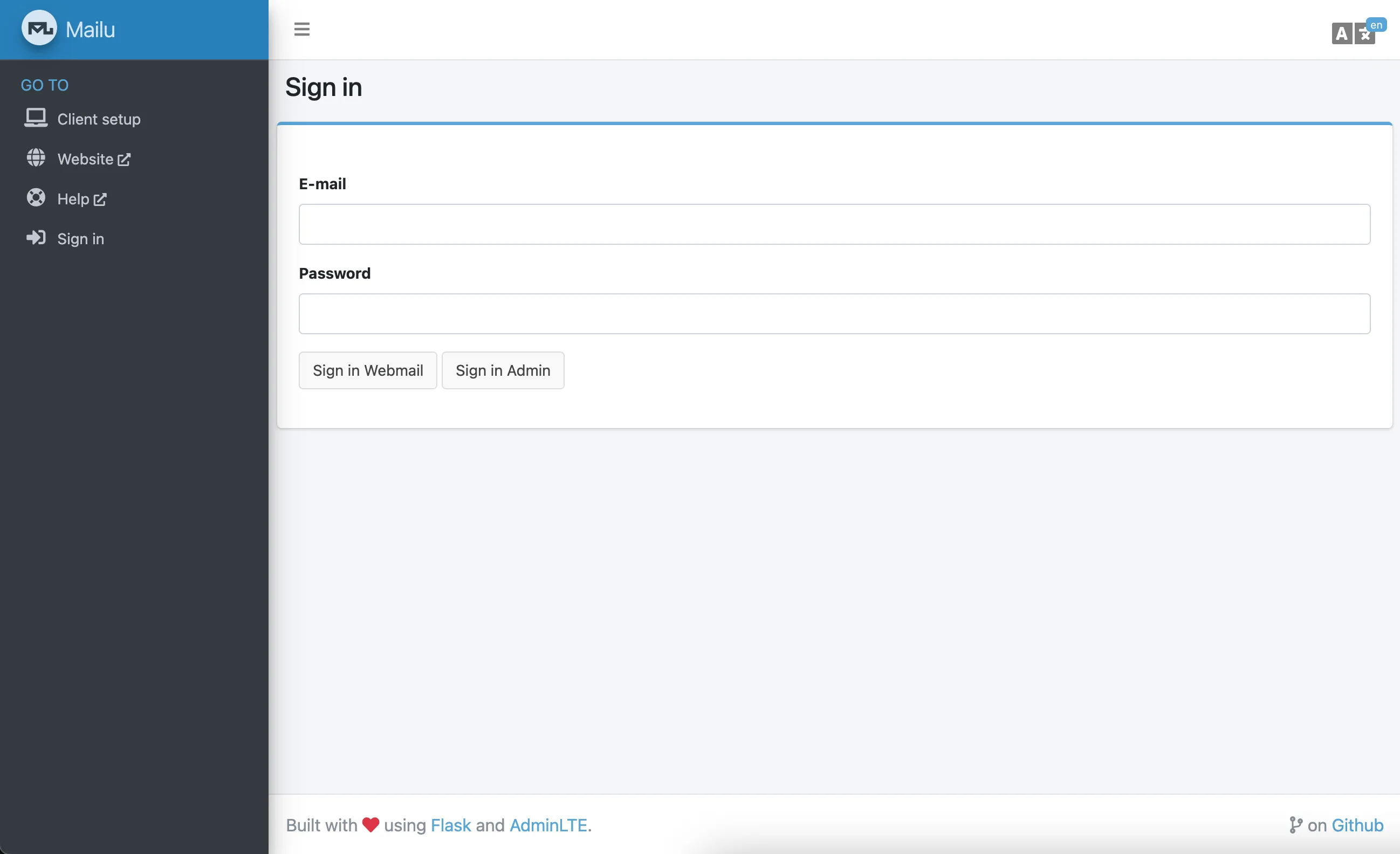
Initial Setup
After logging into Mailu, you’ll see a user dashboard with all your main mailbox settings and anti-spam controls. The menu on the left provides fast access to password management, auto-reply, external account fetch, client setup, and admin tools. All key email options are easy to find and adjust for everyday work:
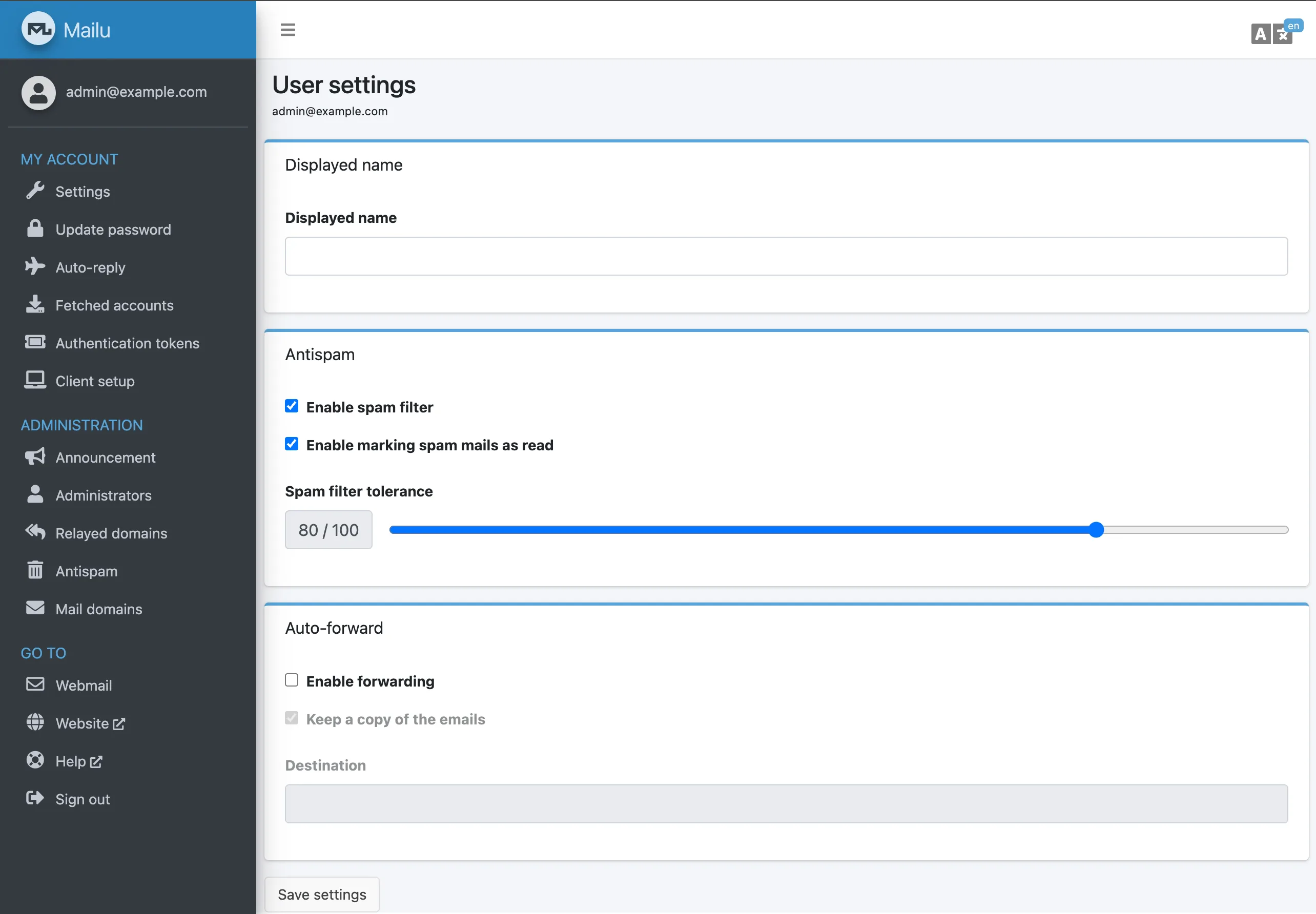
- Mailbox settings: Change your display name and manage your email account’s main info.
- Antispam controls: Enable or disable spam filtering, auto-mark spam as read, and adjust spam tolerance level.
- Auto-reply: Set up vacation/auto-reply for incoming emails.
- Fetched accounts: Import emails from external accounts (IMAP/POP3) right into your Mailu inbox.
- Forwarding: Automatically forward incoming mail to another address, optionally keeping a copy.
- Password & tokens: Change your account password and generate authentication tokens for apps.
- Client setup: Get ready-made configuration for mail clients (Thunderbird, Outlook, mobile, etc.).
Detailed information about Mailu settings is available in the official documentation.
Updating Mailu
When a new version of Mailu is released, you can update the containers while keeping your settings and persistent data. Review the release notes and back up your data before updating. See the official releases.
Commands for updating Mailu:
cd /opt/mailu/
docker compose pull
docker compose down
docker compose up -d
Example of how to perform the update in the SSH console:
[root@server ~]# cd /opt/mailu/

[root@server mailu]# docker compose pull
[+] Pulling 11/11
✔ resolver Pulled
✔ antivirus Pulled
✔ oletools Pulled
✔ front Pulled
✔ webmail Pulled
✔ fetchmail Pulled
✔ antispam Pulled
✔ smtp Pulled
✔ redis Pulled
✔ admin Pulled
✔ imap Pulled

[root@server mailu]# docker compose down
[+] Running 15/15
✔ Container mailu-antispam-1   Removed
✔ Container mailu-webmail-1    Removed
✔ Container mailu-fetchmail-1  Removed
✔ Container mailu-smtp-1       Removed
✔ Container mailu-imap-1       Removed
✔ Container mailu-admin-1      Removed
✔ Container mailu-antivirus-1  Removed
✔ Container mailu-oletools-1   Removed
✔ Container mailu-front-1      Removed
✔ Container mailu-redis-1      Removed
✔ Container mailu-resolver-1   Removed
✔ Network mailu_default        Removed
✔ Network mailu_webmail        Removed
✔ Network mailu_clamav         Removed
✔ Network mailu_oletools       Removed

[root@server mailu]# docker compose up -d
[+] Running 15/15
✔ Network mailu_default        Created
✔ Network mailu_webmail        Created
✔ Network mailu_clamav         Created
✔ Network mailu_oletools       Created
✔ Container mailu-resolver-1   Started
✔ Container mailu-antivirus-1  Started
✔ Container mailu-redis-1      Started
✔ Container mailu-front-1      Started
✔ Container mailu-oletools-1   Started
✔ Container mailu-admin-1      Started
✔ Container mailu-smtp-1       Started
✔ Container mailu-imap-1       Started
✔ Container mailu-webmail-1    Started
✔ Container mailu-antispam-1   Started
✔ Container mailu-fetchmail-1  Started
Разблокировка SMTP-портов
В целях безопасности исходящие TCP-порты (25, 465 и 587) по умолчанию заблокированы на всех VPS. Это предотвращает рассылку спама. Для снятия блокировки выполните следующие действия:
- Зарегистрируйте доменную зону. A-запись домена должна указывать на IP-адрес сервера.
- Отправьте запрос в техническую поддержку, указав необходимость открытия исходящих SMTP-портов для отправки почты и домен или поддомен отправителя.
- После анализа доменного имени мы примем решение об открытии SMTP-портов и уведомим вас.
Opening SMTP ports may require additional details about your domain name and its intended use.